 Source: Jeramy Johnson / Android Central
If you've ever wondered how to adjust the Always On Display (AOD) on your Samsung Galaxy phone, we're here to help! The AOD feature is such a convenience because it lets you see important things like the time, temperature, calendar appointments, and even music at just a glance. Better still, Samsung allows you to customize how you want to enable the AOD, what color you want it to be, and even if you want to add your own images or GIFs to it. Let's dive in to learn how to get started.
Products used in this guide
How to adjust the Always-On Display on your Samsung Galaxy S or Note phone
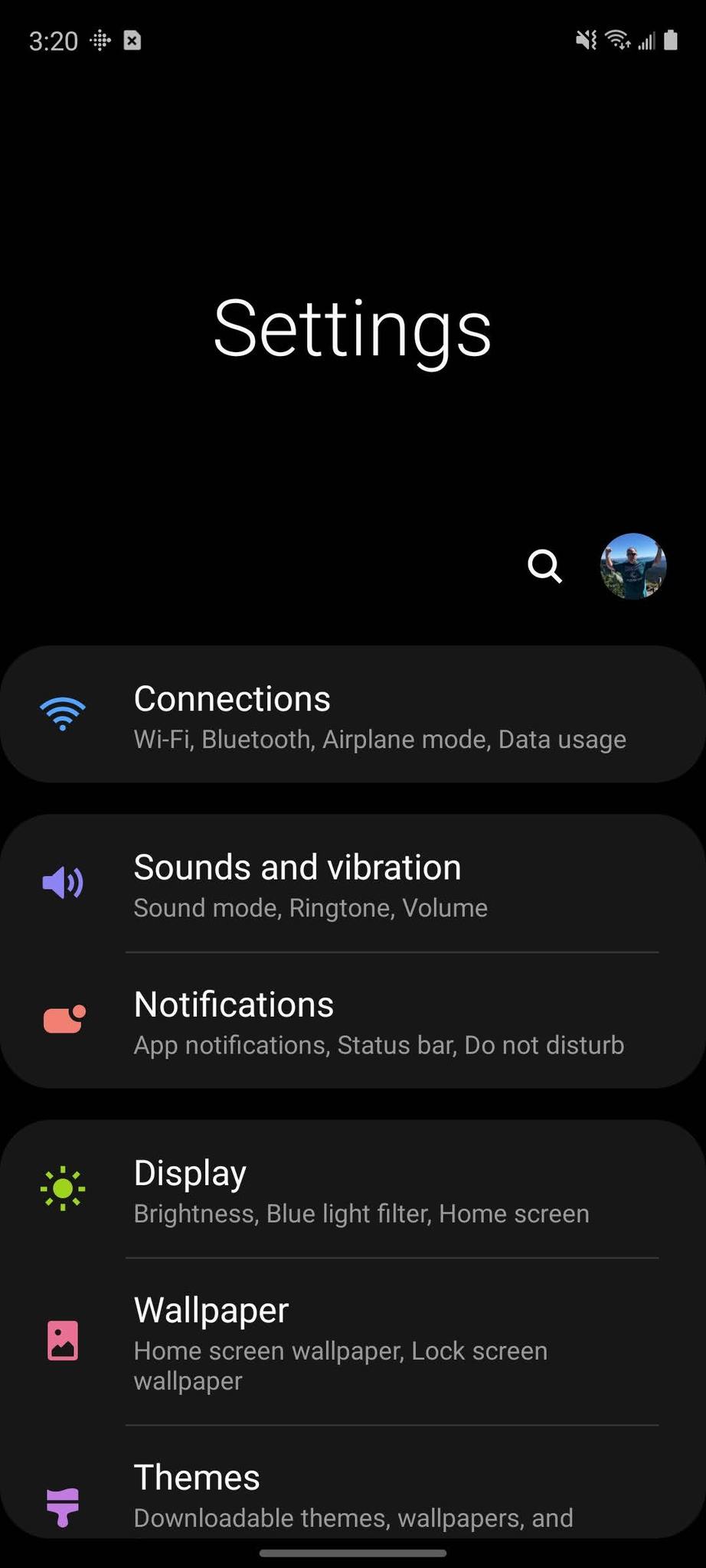
- Swipe down to access the Settings menu, or open the Settings app from your app drawer.
-
Scroll down and tap on Lock Screen.

 Source: Android Central
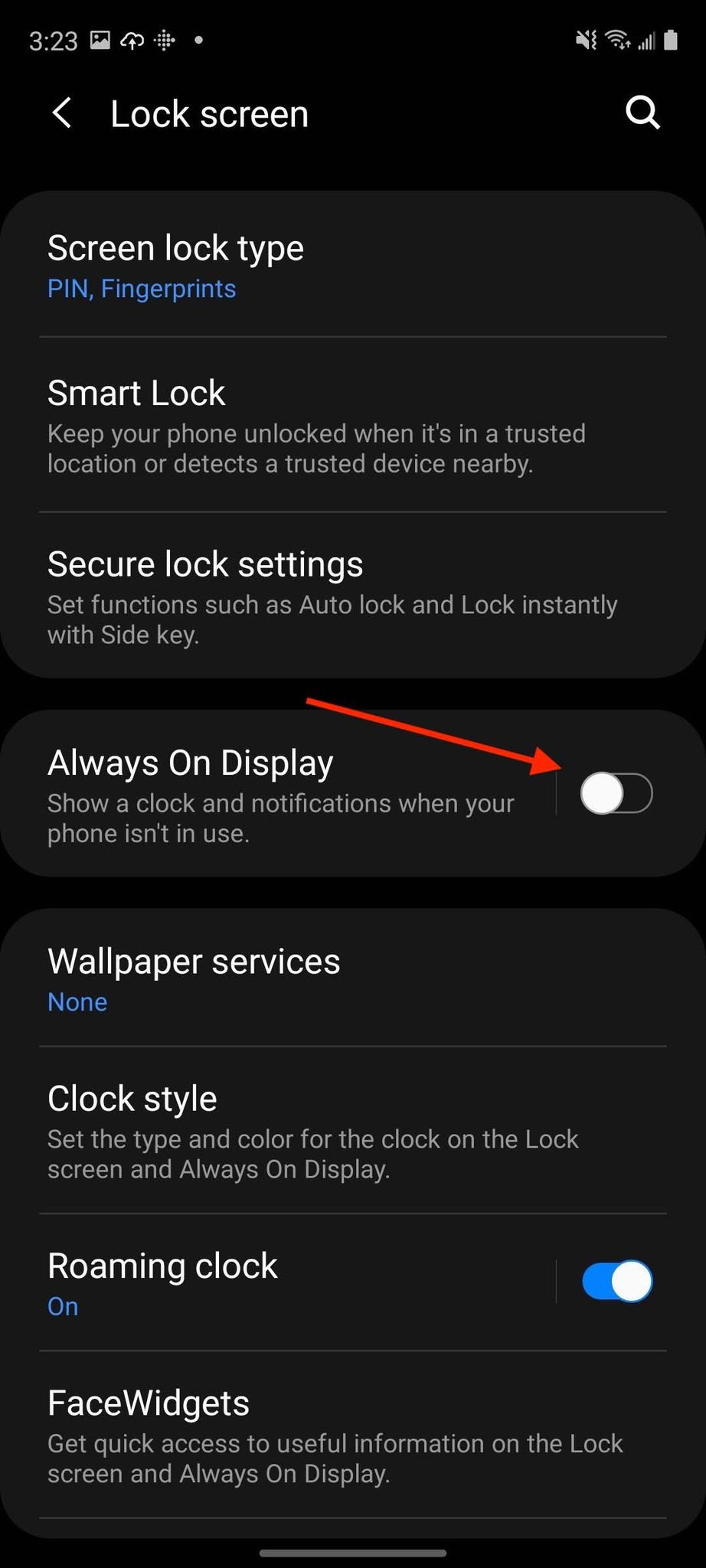
 - Tap to toggle on the Always On Display feature.
-
Tap the Tap to show link underneath.
 Source: Android Central
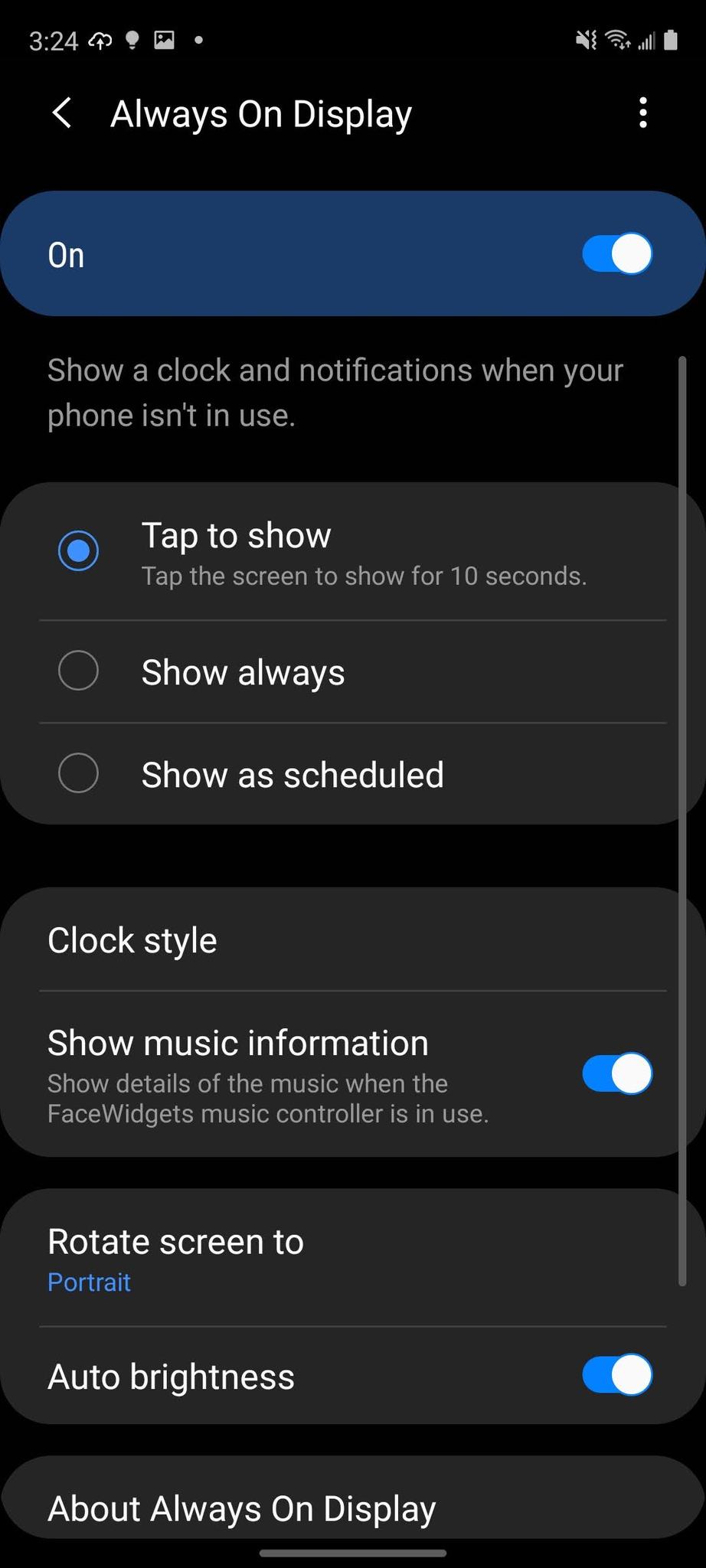
 - From this screen, you can change your Always On Display to come on when you tap it, have it always on, or show on a schedule. Tap your preference.
- Further down, you can tap to select whether you want the screen to rotate in either Portrait or Landscape mode.
- Tap the toggle to Show music information so that you can see music details when the FaceWidgets music controller is in use.
-
Tap to toggle on or off the Auto brightness.
 Source: Android Central
 -
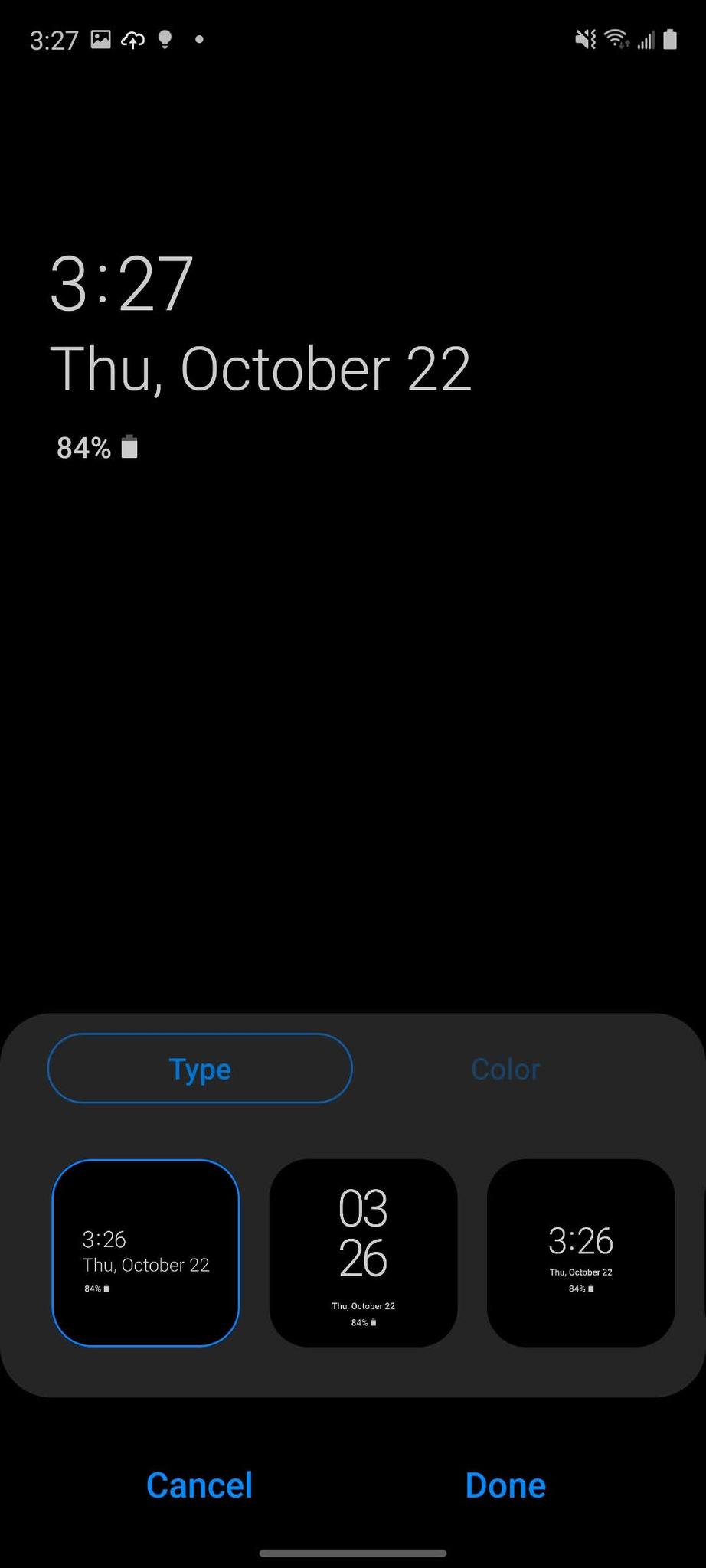
Tap on Clock style to change the appearance or color of the Always On Display's clock.
 Source: Android Central


Now you know how to make the necessary adjustments to customize the Always On Display to your liking. Start making tweaks, and have fun!
Our top equipment picks
These tips will work on any recent Samsung Galaxy S or Note series phone running a recent version of One UI, but our favorite Samsung phone right now, and our favorite Android phone overall at the moment, is the value flagship Samsung Galaxy S20 FE.
October 23, 2020 at 06:00PM
https://ift.tt/34onk2S
How to use the Always-On Display on your Samsung Galaxy Phone - Android Central
https://ift.tt/31VSHRH
Samsung


No comments:
Post a Comment